

Microsoft 365 users on Windows 11, the time to act is now. The company has officially retired the Microsoft Store installation type for its productivity suite. If your organization still relies on Store‑based installs, you risk losing critical feature rollouts, security patches, and support.
What’s Happening? The End of Store‑Based M365
Microsoft’s latest announcement confirms that the Store channel will no longer receive updates or new features. The only supported path moving forward is the traditional Click‑to‑Run (C2R) deployment.
Why the Shift Matters
Click‑to‑Run delivers a rolling update model, ensuring that every Office app receives the newest security fixes and functionality without manual intervention. The Store version, in contrast, was a one‑shot install that could become stale quickly.
How to Check if You’re Affected
Before you jump into migration, verify your current installation type:
- Open any Office app (Word, Excel, PowerPoint).
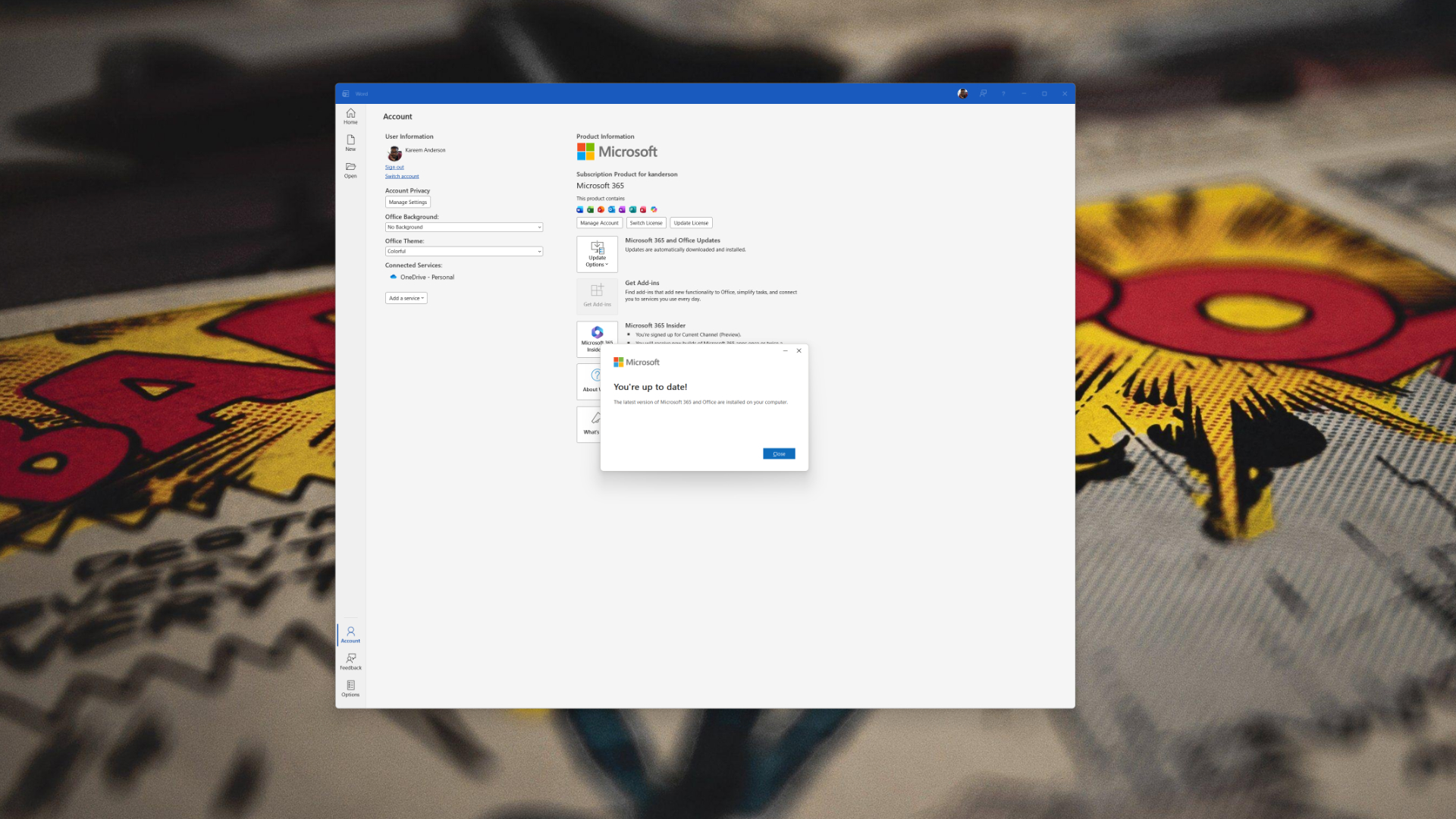
- Navigate to File → Account.
- Under Product Information, look for Installation Type. If it says Microsoft Store, you’re in the unsupported channel.
Step‑by‑Step Migration to Click‑to‑Run
IT admins and power users can follow this quick guide to switch:
- Uninstall the Store version via Settings → Apps → Apps & Features.
- Download the Office Deployment Tool (ODT) from the Microsoft Download Center.
- Create a configuration.xml file with the following snippet:
<Configuration>
  <Add OfficeClientEdition="64">
    <Product ID="O365Business">
      <Language ID="en-us" />
    </Product>
  </Add>
  <Updates Enabled="TRUE" Channel="Monthly" />
</Configuration> - Run setup.exe /configure configuration.xml from an elevated command prompt.
- Verify installation type again via File → Account.
Key Benefits of Click‑to‑Run
- Instant updates – no need to restart or reboot.
- Better security posture – patches roll out as soon as they’re approved.
- Consistent feature parity across all devices.
What About Other Microsoft Products?
Microsoft is extending this policy to other Store‑based Office products, including Teams and OneDrive. The same migration principles apply: uninstall the Store version, then reinstall via the ODT or the Microsoft 365 Admin Center.
Common Pitfalls and How to Avoid Them
- Failing to close Office apps before uninstalling can leave orphaned files. Close all apps first.
- Using an outdated ODT version may cause slow installs. Always pull the latest tool.
- Ignoring the Update Channel setting can lead to delayed feature releases. Set to Monthly or Semi‑Annual.
Why IT Admins Should Flag This Now
Windows 11’s new architecture is already optimizing for cloud‑centric workflows. An unsupported Office install can create compliance gaps and hinder the rollout of new collaboration features.
Final Takeaway
Microsoft’s decision to sunset the Store channel isn’t a surprise but a call to action. By migrating to Click‑to‑Run, you lock in continuous support, security, and the latest productivity enhancements.
Stay ahead, keep your teams productive, and ensure your organization’s software stack is future‑proof. Update your Microsoft 365 installs today and secure a smooth transition into the next generation of Office.


💬 Comments
Comments
Post a Comment