

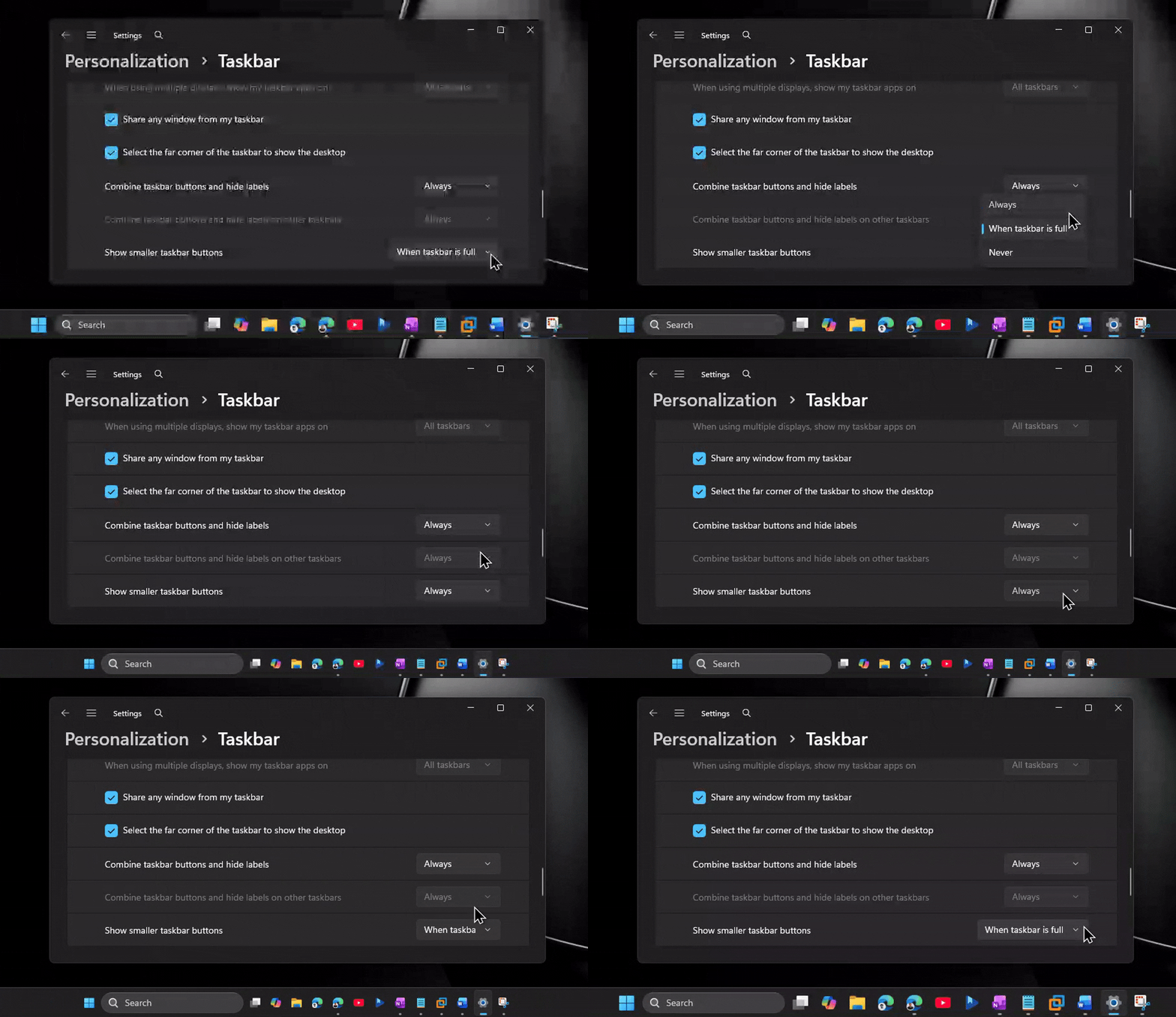
Microsoft’s latest Windows 11 update gives users an elegant solution to a long‑standing frustration: the ability to shrink the taskbar in two distinct ways. While Windows 10 users have wrestled with a stubborn, full‑size taskbar, Windows 11 now offers a streamlined experience that feels both modern and highly customizable.
Why the Taskbar Shrink Feature Matters
For many, the taskbar is the first touchpoint with the operating system. In Windows 10, the taskbar’s fixed height meant icons could stack poorly on smaller screens, forcing users to compromise on visibility or clutter. Windows 11’s new shrink options resolve this by allowing the taskbar to adapt to your workflow and display size.
Two Distinct Shrinking Modes
Microsoft has introduced Auto‑Shrink and Manual Resize—each tackling the taskbar’s size issue from a different angle.
- Auto‑Shrink: Automatically reduces the taskbar height when the screen real estate is tight, such as during full‑screen gaming or when multiple applications are open side‑by‑side. The icons remain crisp, and the taskbar’s background subtly fades to keep focus on the active window.
- Manual Resize: Lets users drag the taskbar edge to a custom height. This mode is ideal for power users who prefer a consistently compact interface or for those working on ultra‑wide monitors where a taller taskbar feels intrusive.
How to Enable the New Features
Access the settings by right‑clicking the taskbar and selecting Taskbar settings. Under the Taskbar behaviors section, toggle Auto‑Shrink or drag the slider under Taskbar size to your preferred height. A quick restart of the taskbar or a system reboot will apply the changes immediately.
Impact on Productivity and UI Design
These adjustments offer tangible benefits:
- More screen space for document editing, coding, or data analysis.
- Reduced visual clutter, making it easier to locate active windows.
- Consistent look across devices, whether you’re on a 24‑inch monitor or a 27‑inch curved display.
What’s Next for Windows 11 UI Customization?
Microsoft has hinted at further tweaks, such as dynamic taskbar color changes based on the active application and deeper integration with the new Activity History panel. If Windows 10 users found their taskbar a constant annoyance, Windows 11 now offers a more refined, user‑centric experience that could set a new standard for desktop operating systems.
Ready to try the new taskbar shrink options? Head to Settings > System > Display and start customizing your Windows 11 desktop today. Stay tuned for more Windows updates that keep the user experience at the forefront.


💬 Comments
Comments
Post a Comment