

When a high‑profile hacker was traced back to a VPN in three different countries, the culprit wasn’t the router or the password – it was a Windows fingerprint that most users never knew existed. Microsoft’s GDID (Global Device Identifier) has quietly collected device data since Windows 11’s launch, but it isn’t as invasive as it sounds. Below, we unpack how GDID works, why it matters, and what you can do to reduce its reach.
What is GDID and why does it matter?
GDID is a unique identifier embedded in every Windows 11 device. When you log into Microsoft services, the system sends a small packet of information back to Microsoft’s servers. The data includes hardware details, software versions, and a unique code that ties all of your devices together. While designed for legitimate uses like troubleshooting and feature rollout, it also gives Microsoft a way to track a device across the globe.
In the recent FBI case, Wilaya Peter Stokes was located by cross‑referencing the GDID data with VPN logs. The fingerprint helped law enforcement map a user’s online trail across three countries, proving the power of the system.
Key Features of the GDID Tracker
- Device‑level ID: A single code that links all Windows 11 devices to one user account.
- Cross‑platform sync: Works with Windows, Xbox, and other Microsoft services.
- Automatic reporting: Data is sent in the background during system updates.
- Limited user control: No straightforward toggle to turn it off without affecting core services.
How to Reduce GDID Exposure
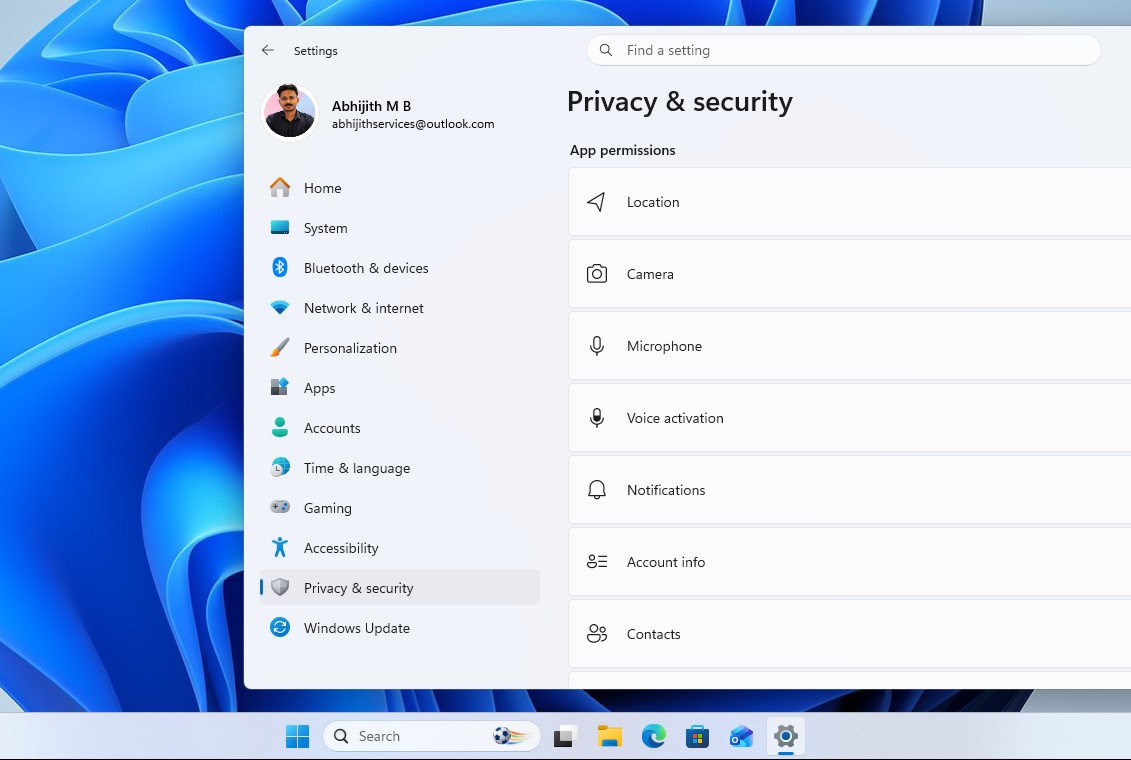
While you can’t fully disable GDID without breaking essential services, you can shrink what Microsoft receives by tweaking a few privacy settings. The steps below apply to Windows 11 Home and Pro editions.
1. Turn Off Device ID Sync
Navigate to Settings → Accounts → Sync your settings. Turn off Sync device settings and Sync your personal info. This stops most automatic ID uploads.
2. Disable Diagnostic Data Sharing
Go to Settings → Privacy → Diagnostics & feedback. Select Basic instead of Full. Basic mode limits data to essential error reports only.
On account.microsoft.com, review the Privacy settings. Disable Advertising ID and revoke permissions for third‑party apps that request device data.
4. Use a Local Account When Possible
If you don’t need cloud sync, switch to a local Windows account. This reduces the need for Microsoft to tie your device to a cloud profile.
Should You Be Worried?
GDID itself isn’t a privacy nightmare; it’s a tool for Microsoft to improve service reliability. However, the same data that helps fix a buggy update can help law enforcement or, in worst cases, malicious actors. By following the steps above, you can keep the data flow to a minimum while still enjoying Windows 11’s core features.
Stay Ahead of the Curve
Microsoft is constantly refining its data collection policies. Keep an eye on Windows 11 privacy updates and adjust settings as new options become available. Remember, every tweak you make is a step toward a more private computing experience.
Want to take control of your privacy? Follow our guide and adjust settings today.


💬 Comments
Comments
Post a Comment